Infographics & Data Visualization

Infographics & Data Visualization

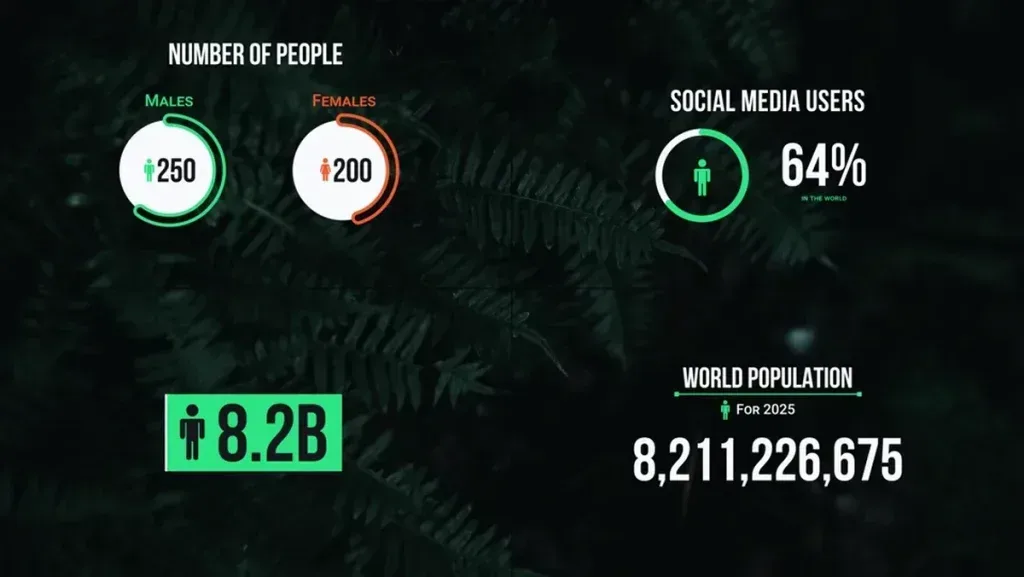
After Effects infographic and data visualization templates are editable project files designed for turning statistics, reports, comparisons, and complex information into a clear visual narrative. They provide much of the motion design, timing, transition work, typography, and layout in advance, allowing editors to replace text, images, video, logos, colors, and audio with project-specific material. The category serves marketing teams, analysts, companies, educators, publishers, startups, and educational content creators and can reduce production time for urgent or repeatable work. Common options include bar and line charts, pie charts, number counters, timelines, geographic maps, process diagrams, flowcharts, percentage comparisons, and animated dashboards. Before downloading, review the preview, software version, aspect ratio, duration, plugin requirements, included assets, and license. A polished demonstration does not automatically mean that the project is organized, easy to customize, or suitable for the intended platform.

What This Category Is Designed to Do

The central purpose is turning statistics, reports, comparisons, and complex information into a clear visual narrative. A ready-made project offers a tested structure instead of requiring every layer and animation to be built from scratch, but a professional result still depends on thoughtful customization. Imagery, copy, color, pacing, and the sequence of ideas must match the actual brief. These templates can support annual reports, investor presentations, educational videos, performance reviews, market analysis, sales growth stories, key performance indicators, and news content. Used correctly, they create more time for planning, brand alignment, quality control, and alternate versions while accelerating repetitive production tasks. Used carelessly, they simply reproduce the sample with different words and weaken the credibility of the final video.

Who Uses These After Effects Projects?

Typical users include marketing teams, analysts, companies, educators, publishers, startups, and educational content creators. An editor may use a project to meet a tight client deadline, a marketing team may create several campaign variations, and an educator or analyst may package specialized information in a more accessible visual form. Required skill varies by project. Some files need only basic text and media replacement, while expression-driven, three-dimensional, or highly modular templates demand more After Effects experience. Read the documentation and inspect the composition structure before committing to a design. This early check reveals whether the file fits the available content, hardware, schedule, and delivery requirements.

Popular Template Types

Common formats include bar and line charts, pie charts, number counters, timelines, geographic maps, process diagrams, flowcharts, percentage comparisons, and animated dashboards. Each format is built for a particular communication problem, so selection should not be based on preview aesthetics alone. Define the output, audience, publishing platform, and amount of available material first. A project with many scenes is useful only when enough strong images, clips, and messages exist. Randomly deleting half of a tightly timed sequence can damage pacing. Modular templates that allow scenes to be reordered, duplicated, shortened, or removed are more practical for campaigns that need horizontal, vertical, long, and short versions from one visual system.

Elements of a Professional Template

A well-prepared file usually contains color controls, text and icon placeholders, editable charts, animated numbers, data labels, maps, guides, and output-ready compositions. Clear folders, understandable composition names, protected technical layers, and an obvious editing area make customization more predictable. Central controls for color, size, speed, or effect intensity can save considerable time. Documentation, font links, software-version information, and a clear list of included and excluded assets are equally important. A project can look impressive in the preview yet become expensive to customize when media is missing, layers are poorly named, or essential controls are buried. Organization is a practical feature, not merely an author preference.

Choosing the Right Visual Style

Available styles often include minimal, corporate, isometric, flat, three-dimensional, technology-focused, colorful, formal, and presentation-ready. The choice should follow the subject, audience, and brand character. Minimal design supports precise messaging and strong imagery, faster editing suits energetic campaigns, and formal content benefits from restrained movement and highly legible typography. Watch the preview once without sound so that music does not hide weak timing or confusing information order. Pause on several frames and judge the composition as a still image. Balanced frames generally adapt better to short clips, thumbnails, mobile viewing, and versions that need additional captions or translations.

Plan the Content Before Opening the Project

Prepare the copy, images, footage, logo, and factual information before editing. Give each scene one job and arrange the sequence from introduction to central message and then to a result or action. For annual reports, investor presentations, educational videos, performance reviews, market analysis, sales growth stories, key performance indicators, and news content, write a concise version of the core message first and add supporting detail only when time permits. This prevents long paragraphs from being squeezed into small placeholders or unrelated images from being used simply to fill scenes. Even a rough storyboard can expose missing media, excessive runtime, or duplicated ideas before technical work begins, making the template faster to customize and easier to review.

Match the Brand Identity

Replace the preview palette, type, logo treatment, and graphic language with the actual brand system. Leaving sample colors and imagery untouched can make the output look generic or identical to other template-based videos. Define primary and secondary colors and check text contrast across every background. The logo should not be oversized or permanently visible unless the brief requires it. When a brand guide exists, follow its clear-space rules, approved colors, icon style, and logo usage. Review the result on both a phone and a large display because subtle type, thin lines, and low-contrast elements behave differently at different viewing sizes.

Copy, Typography, and Legibility

Short, direct copy is easier to read in motion. Give each scene one main message and divide long explanations into several steps. Choose fonts that support every required language and include the needed weights. Test line spacing, safe margins, heading size, and on-screen duration at actual mobile scale. Mixed left-to-right and right-to-left terms can be used in the main content, but direction needs to be controlled so punctuation and numbers remain in order. Spelling errors, wrong figures, or inconsistent spacing can damage trust even when the animation is excellent, so proofread outside After Effects and again in the final frames.

Prepare Images, Video, and Source Files

Name and organize source media before replacing placeholders. The aspect ratio and resolution of each image or clip should be reasonably close to its destination to avoid awkward crops, distortion, or softness. Oversized media consumes memory, while small files break down when scaled. Check frame rates and clip duration, keep original copies, and save the project under a new name. Replacing a layer source through the proper After Effects workflow can retain masks, effects, transformations, and animation. Good source preparation is one of the simplest ways to prevent missing-media warnings and last-minute visual inconsistencies.

A Category-Specific Quality Principle

Accuracy, chart selection, and legibility matter more than decoration in this category. Every graphic should identify units, time periods, and data context, while animation should reveal the message in a logical order instead of distracting from the evidence.

Pacing, Timing, and Motion

Motion should clarify the message rather than merely fill time. Text entrances, media reveals, and exits need enough duration for comprehension. Cuts may follow music, but the sequence should remain understandable without audio. Work created for annual reports, investor presentations, educational videos, performance reviews, market analysis, sales growth stories, key performance indicators, and news content may require educational, formal, calm, or energetic pacing. Watch the complete edit without stopping and mark moments that feel rushed or unnecessarily long. Small timing changes of only a few frames can significantly improve legibility and rhythm. Avoid making every element move at once; visual hierarchy is easier to follow when the most important item leads and supporting elements arrive afterward.

Resolution and Aspect Ratio

Choose the destination before choosing the template. Horizontal compositions suit websites, YouTube, presentations, and displays; vertical versions suit stories and mobile-first video; square or four-by-five formats support selected social feeds. Converting a horizontal project to vertical is not a simple crop and usually requires repositioning text, media, and motion. Higher resolution offers more flexibility but increases memory use and render time. Respect interface safe areas so titles, logos, or calls to action are not covered by platform controls. When several formats are required, select a template with native variants or a layout that can be rebuilt without losing hierarchy.

Software Version and Compatibility

The project must be compatible with the installed After Effects version. A file saved in a newer release may not open correctly in an older one or may lose features during conversion. Read the product details for version, fonts, plugins, helper scripts, and included files. Test the project on the delivery system when it will be handed to a team or client. Keep an untouched original and save milestones with descriptive names so that major changes can be reversed. Back up the project and media before editing expressions, color-management settings, or complex precompositions.

No-Plugin Projects and Performance

No plugins generally means that the primary look uses built-in After Effects tools; it does not guarantee that fonts, music, imagery, or helper files are included. Blur, lighting, particles, three-dimensional layers, and high resolution can still make a project demanding. Temporarily reduce preview quality, use proxies, disable heavy effects, and clear caches when necessary. Restore final settings before export. Render a short test from the most complex scene to identify memory, font, codec, or missing-effect problems before committing to the full timeline. Performance planning is especially important when several language or aspect-ratio versions must be delivered.

A Practical Editing Workflow

Extract the complete package without changing its folder structure. Read the guide, open the project, save a new copy, and identify folders for editing, media, text, logos, and output. Customize one scene completely first so that the template logic becomes clear, then apply the process to the remaining scenes. Replace copy, media, colors, and branding before adjusting duration. At the end, inspect every composition for missing files, substituted fonts, guide layers, watermarks, spelling errors, disabled effects, and objects outside safe margins. A systematic pass is faster than correcting isolated mistakes after render.

Music, Voice, and Sound Effects

Music can strengthen pace and identity but is not always included. Check its license separately and never assume that preview audio may be used commercially. Balance narration, music, and effects so that no essential information is masked. Sound effects can support logos, transitions, clicks, or emphasis when used sparingly. Test the mix through headphones, laptop speakers, and a phone. When the intended platform is often viewed silently, text and imagery must communicate the complete message. Export a silent review version when necessary so that stakeholders evaluate visual clarity without being carried by the soundtrack.

Rendering and Final Export

Confirm the master composition, work area, resolution, frame rate, output location, and audio settings before rendering. Web delivery usually needs efficient compression, while archiving or further editing may require a high-quality intermediate. Name files by project, language, aspect ratio, and revision to prevent confusion. Render a short segment from the most demanding scene first, then create the full output. Watch the rendered file from beginning to end and inspect both image and sound. A completed render queue does not guarantee that there are no black frames, clipped text, missing audio, or accidental sample layers.

Free Templates, Premium Files, and Licensing

Free and premium templates can both be useful, but free does not mean unrestricted redistribution, resale, or client use. Read the license, attribution requirements, source-file sharing limits, and commercial-use conditions. Music, fonts, images, and preview footage may be excluded or licensed separately. Premium files often provide more scenes, documentation, support, and organization, yet each item still needs individual review. Keep receipts and license records for commercial campaigns and client delivery. Never redistribute the raw project unless the license explicitly allows it, and replace all preview assets with properly licensed material.

Common Mistakes to Avoid

Frequent problems include using the wrong chart, inconsistent percentages, crowded labels, counters that move too quickly, similar colors for different series, and statistics without context. Most can be prevented through planning and a structured quality-control pass. Do not let an attractive preview hide technical requirements or content limitations. Replace every sample asset and review the video at the real destination size. Ask someone unfamiliar with the brief to watch the sequence and explain the message they understood. When their interpretation differs from the intended goal, the issue is usually scene order, wording, timing, or hierarchy rather than a lack of effects. Simplifying the presentation often produces a stronger result than adding more animation.

Frequently Asked Questions

Do I need advanced After Effects skills? Basic knowledge of the Project panel, Timeline, text, media replacement, and export is enough for simple templates; complex files need more experience. Are all free files plugin-free? No, price and technical requirements are separate. Can scenes be removed? Usually in modular projects, but timing and audio must be adjusted. Why does media appear missing? The source path changed and needs to be relinked. Is preview music included? Often it is not, so read the product notes. Can one template create several formats? Sometimes, but a true vertical version normally requires layout changes rather than an automatic crop.

Conclusion and Final Checklist

After Effects infographic and data visualization templates offer a faster route to turning statistics, reports, comparisons, and complex information into a clear visual narrative, but final quality depends on selecting the right project and customizing it carefully. Before downloading, check the goal, audience, style, duration, aspect ratio, software version, plugins, and license. Before export, review copy, numbers, colors, logos, media, safe areas, audio, and the final action. Confirm that no sample image, watermark, guide layer, missing font, or disabled effect remains. Archive the customized project, linked media, license records, and final outputs with consistent names so that future revisions and additional versions can be completed quickly and safely.

Infographics & Data Visualization

Infographics & Data Visualization

After Effects infographic and data visualization templates are editable project files designed for turning statistics, reports, comparisons, and complex information into a clear visual narrative. They provide much of the motion design, timing, transition work, typography, and layout in advance, allowing editors to replace text, images, video, logos, colors, and audio with project-specific material. The category serves marketing teams, analysts, companies, educators, publishers, startups, and educational content creators and can reduce production time for urgent or repeatable work. Common options include bar and line charts, pie charts, number counters, timelines, geographic maps, process diagrams, flowcharts, percentage comparisons, and animated dashboards. Before downloading, review the preview, software version, aspect ratio, duration, plugin requirements, included assets, and license. A polished demonstration does not automatically mean that the project is organized, easy to customize, or suitable for the intended platform.

What This Category Is Designed to Do

The central purpose is turning statistics, reports, comparisons, and complex information into a clear visual narrative. A ready-made project offers a tested structure instead of requiring every layer and animation to be built from scratch, but a professional result still depends on thoughtful customization. Imagery, copy, color, pacing, and the sequence of ideas must match the actual brief. These templates can support annual reports, investor presentations, educational videos, performance reviews, market analysis, sales growth stories, key performance indicators, and news content. Used correctly, they create more time for planning, brand alignment, quality control, and alternate versions while accelerating repetitive production tasks. Used carelessly, they simply reproduce the sample with different words and weaken the credibility of the final video.

Who Uses These After Effects Projects?

Typical users include marketing teams, analysts, companies, educators, publishers, startups, and educational content creators. An editor may use a project to meet a tight client deadline, a marketing team may create several campaign variations, and an educator or analyst may package specialized information in a more accessible visual form. Required skill varies by project. Some files need only basic text and media replacement, while expression-driven, three-dimensional, or highly modular templates demand more After Effects experience. Read the documentation and inspect the composition structure before committing to a design. This early check reveals whether the file fits the available content, hardware, schedule, and delivery requirements.

Popular Template Types

Common formats include bar and line charts, pie charts, number counters, timelines, geographic maps, process diagrams, flowcharts, percentage comparisons, and animated dashboards. Each format is built for a particular communication problem, so selection should not be based on preview aesthetics alone. Define the output, audience, publishing platform, and amount of available material first. A project with many scenes is useful only when enough strong images, clips, and messages exist. Randomly deleting half of a tightly timed sequence can damage pacing. Modular templates that allow scenes to be reordered, duplicated, shortened, or removed are more practical for campaigns that need horizontal, vertical, long, and short versions from one visual system.

Elements of a Professional Template

A well-prepared file usually contains color controls, text and icon placeholders, editable charts, animated numbers, data labels, maps, guides, and output-ready compositions. Clear folders, understandable composition names, protected technical layers, and an obvious editing area make customization more predictable. Central controls for color, size, speed, or effect intensity can save considerable time. Documentation, font links, software-version information, and a clear list of included and excluded assets are equally important. A project can look impressive in the preview yet become expensive to customize when media is missing, layers are poorly named, or essential controls are buried. Organization is a practical feature, not merely an author preference.

Choosing the Right Visual Style

Available styles often include minimal, corporate, isometric, flat, three-dimensional, technology-focused, colorful, formal, and presentation-ready. The choice should follow the subject, audience, and brand character. Minimal design supports precise messaging and strong imagery, faster editing suits energetic campaigns, and formal content benefits from restrained movement and highly legible typography. Watch the preview once without sound so that music does not hide weak timing or confusing information order. Pause on several frames and judge the composition as a still image. Balanced frames generally adapt better to short clips, thumbnails, mobile viewing, and versions that need additional captions or translations.

Plan the Content Before Opening the Project

Prepare the copy, images, footage, logo, and factual information before editing. Give each scene one job and arrange the sequence from introduction to central message and then to a result or action. For annual reports, investor presentations, educational videos, performance reviews, market analysis, sales growth stories, key performance indicators, and news content, write a concise version of the core message first and add supporting detail only when time permits. This prevents long paragraphs from being squeezed into small placeholders or unrelated images from being used simply to fill scenes. Even a rough storyboard can expose missing media, excessive runtime, or duplicated ideas before technical work begins, making the template faster to customize and easier to review.

Match the Brand Identity

Replace the preview palette, type, logo treatment, and graphic language with the actual brand system. Leaving sample colors and imagery untouched can make the output look generic or identical to other template-based videos. Define primary and secondary colors and check text contrast across every background. The logo should not be oversized or permanently visible unless the brief requires it. When a brand guide exists, follow its clear-space rules, approved colors, icon style, and logo usage. Review the result on both a phone and a large display because subtle type, thin lines, and low-contrast elements behave differently at different viewing sizes.

Copy, Typography, and Legibility

Short, direct copy is easier to read in motion. Give each scene one main message and divide long explanations into several steps. Choose fonts that support every required language and include the needed weights. Test line spacing, safe margins, heading size, and on-screen duration at actual mobile scale. Mixed left-to-right and right-to-left terms can be used in the main content, but direction needs to be controlled so punctuation and numbers remain in order. Spelling errors, wrong figures, or inconsistent spacing can damage trust even when the animation is excellent, so proofread outside After Effects and again in the final frames.

Prepare Images, Video, and Source Files

Name and organize source media before replacing placeholders. The aspect ratio and resolution of each image or clip should be reasonably close to its destination to avoid awkward crops, distortion, or softness. Oversized media consumes memory, while small files break down when scaled. Check frame rates and clip duration, keep original copies, and save the project under a new name. Replacing a layer source through the proper After Effects workflow can retain masks, effects, transformations, and animation. Good source preparation is one of the simplest ways to prevent missing-media warnings and last-minute visual inconsistencies.

A Category-Specific Quality Principle

Accuracy, chart selection, and legibility matter more than decoration in this category. Every graphic should identify units, time periods, and data context, while animation should reveal the message in a logical order instead of distracting from the evidence.

Pacing, Timing, and Motion

Motion should clarify the message rather than merely fill time. Text entrances, media reveals, and exits need enough duration for comprehension. Cuts may follow music, but the sequence should remain understandable without audio. Work created for annual reports, investor presentations, educational videos, performance reviews, market analysis, sales growth stories, key performance indicators, and news content may require educational, formal, calm, or energetic pacing. Watch the complete edit without stopping and mark moments that feel rushed or unnecessarily long. Small timing changes of only a few frames can significantly improve legibility and rhythm. Avoid making every element move at once; visual hierarchy is easier to follow when the most important item leads and supporting elements arrive afterward.

Resolution and Aspect Ratio

Choose the destination before choosing the template. Horizontal compositions suit websites, YouTube, presentations, and displays; vertical versions suit stories and mobile-first video; square or four-by-five formats support selected social feeds. Converting a horizontal project to vertical is not a simple crop and usually requires repositioning text, media, and motion. Higher resolution offers more flexibility but increases memory use and render time. Respect interface safe areas so titles, logos, or calls to action are not covered by platform controls. When several formats are required, select a template with native variants or a layout that can be rebuilt without losing hierarchy.

Software Version and Compatibility

The project must be compatible with the installed After Effects version. A file saved in a newer release may not open correctly in an older one or may lose features during conversion. Read the product details for version, fonts, plugins, helper scripts, and included files. Test the project on the delivery system when it will be handed to a team or client. Keep an untouched original and save milestones with descriptive names so that major changes can be reversed. Back up the project and media before editing expressions, color-management settings, or complex precompositions.

No-Plugin Projects and Performance

No plugins generally means that the primary look uses built-in After Effects tools; it does not guarantee that fonts, music, imagery, or helper files are included. Blur, lighting, particles, three-dimensional layers, and high resolution can still make a project demanding. Temporarily reduce preview quality, use proxies, disable heavy effects, and clear caches when necessary. Restore final settings before export. Render a short test from the most complex scene to identify memory, font, codec, or missing-effect problems before committing to the full timeline. Performance planning is especially important when several language or aspect-ratio versions must be delivered.

A Practical Editing Workflow

Extract the complete package without changing its folder structure. Read the guide, open the project, save a new copy, and identify folders for editing, media, text, logos, and output. Customize one scene completely first so that the template logic becomes clear, then apply the process to the remaining scenes. Replace copy, media, colors, and branding before adjusting duration. At the end, inspect every composition for missing files, substituted fonts, guide layers, watermarks, spelling errors, disabled effects, and objects outside safe margins. A systematic pass is faster than correcting isolated mistakes after render.

Music, Voice, and Sound Effects

Music can strengthen pace and identity but is not always included. Check its license separately and never assume that preview audio may be used commercially. Balance narration, music, and effects so that no essential information is masked. Sound effects can support logos, transitions, clicks, or emphasis when used sparingly. Test the mix through headphones, laptop speakers, and a phone. When the intended platform is often viewed silently, text and imagery must communicate the complete message. Export a silent review version when necessary so that stakeholders evaluate visual clarity without being carried by the soundtrack.

Rendering and Final Export

Confirm the master composition, work area, resolution, frame rate, output location, and audio settings before rendering. Web delivery usually needs efficient compression, while archiving or further editing may require a high-quality intermediate. Name files by project, language, aspect ratio, and revision to prevent confusion. Render a short segment from the most demanding scene first, then create the full output. Watch the rendered file from beginning to end and inspect both image and sound. A completed render queue does not guarantee that there are no black frames, clipped text, missing audio, or accidental sample layers.

Free Templates, Premium Files, and Licensing

Free and premium templates can both be useful, but free does not mean unrestricted redistribution, resale, or client use. Read the license, attribution requirements, source-file sharing limits, and commercial-use conditions. Music, fonts, images, and preview footage may be excluded or licensed separately. Premium files often provide more scenes, documentation, support, and organization, yet each item still needs individual review. Keep receipts and license records for commercial campaigns and client delivery. Never redistribute the raw project unless the license explicitly allows it, and replace all preview assets with properly licensed material.

Common Mistakes to Avoid

Frequent problems include using the wrong chart, inconsistent percentages, crowded labels, counters that move too quickly, similar colors for different series, and statistics without context. Most can be prevented through planning and a structured quality-control pass. Do not let an attractive preview hide technical requirements or content limitations. Replace every sample asset and review the video at the real destination size. Ask someone unfamiliar with the brief to watch the sequence and explain the message they understood. When their interpretation differs from the intended goal, the issue is usually scene order, wording, timing, or hierarchy rather than a lack of effects. Simplifying the presentation often produces a stronger result than adding more animation.

Frequently Asked Questions

Do I need advanced After Effects skills? Basic knowledge of the Project panel, Timeline, text, media replacement, and export is enough for simple templates; complex files need more experience. Are all free files plugin-free? No, price and technical requirements are separate. Can scenes be removed? Usually in modular projects, but timing and audio must be adjusted. Why does media appear missing? The source path changed and needs to be relinked. Is preview music included? Often it is not, so read the product notes. Can one template create several formats? Sometimes, but a true vertical version normally requires layout changes rather than an automatic crop.

Conclusion and Final Checklist

After Effects infographic and data visualization templates offer a faster route to turning statistics, reports, comparisons, and complex information into a clear visual narrative, but final quality depends on selecting the right project and customizing it carefully. Before downloading, check the goal, audience, style, duration, aspect ratio, software version, plugins, and license. Before export, review copy, numbers, colors, logos, media, safe areas, audio, and the final action. Confirm that no sample image, watermark, guide layer, missing font, or disabled effect remains. Archive the customized project, linked media, license records, and final outputs with consistent names so that future revisions and additional versions can be completed quickly and safely.